Connect your stove to Flam
Five minutes, one label to read, two fields to fill in. Here is every step, and what to do if the connection fails.
Connectivity module
- MAC
- A4CF128E3B70
- PIN
- 4827
- S/N
- 0012 3456 78
The module label
Two lines matter: the MAC address and the PIN. The rest of the label is of no use to Flam.
Illustration: the layout varies from one module to another.
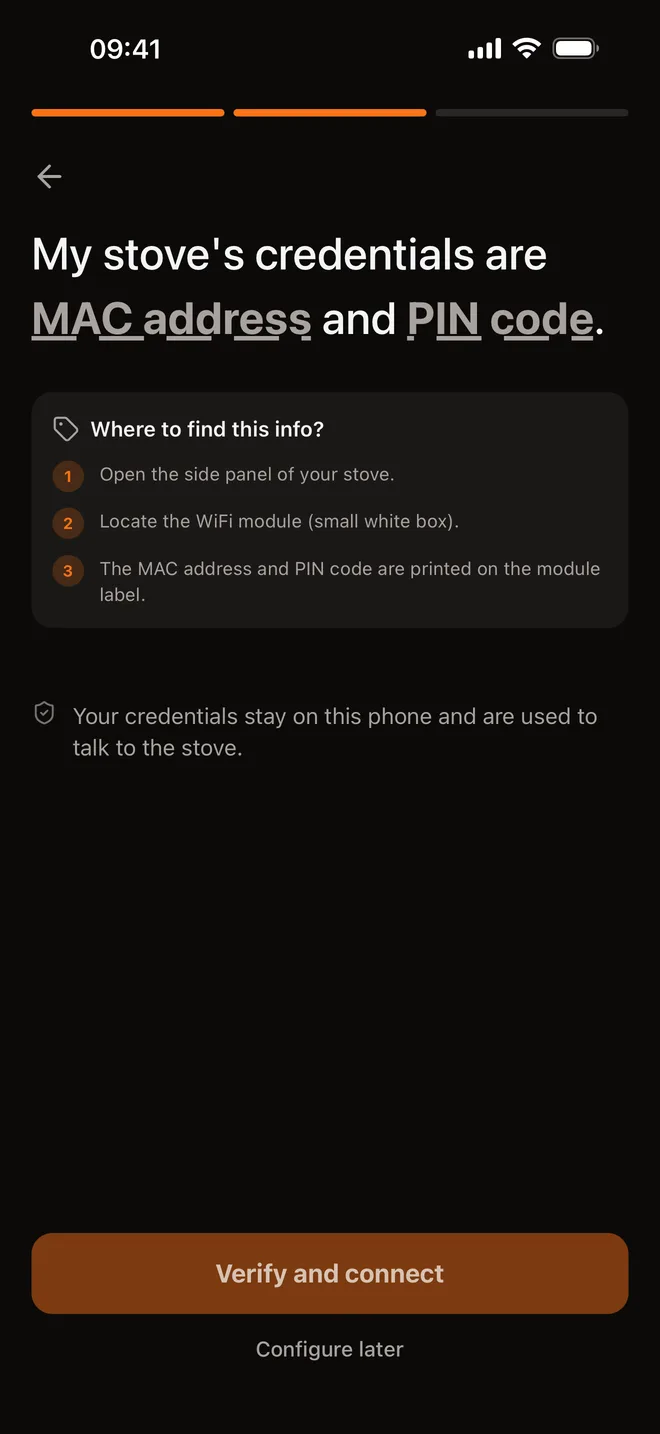
In the app
The two fields, then “Verify and connect”. You can also skip this step and set up the stove later, from the settings.
The five steps
- 1
Check the connectivity module
Your stove must be fitted with a Fumis WiRCU module connected to your WiFi. The simplest test: if it can already be controlled from your manufacturer's app, the module is in place.
- 2
Note the MAC address and PIN
They are printed on the module's label. Take a photo of it: that is safer than copying twelve characters from memory.
- 3
Install Flam
Choose your brand, then your model, or “Other / Custom” if it is not in the list. Enter the town where the stove is: it is used for the weather, and Flam Pilot needs it.
- 4
Enter the two credentials
The MAC address has twelve characters: digits, and letters from A to F. Colons and hyphens are optional; Flam removes them itself.
- 5
Tap “Verify and connect”
Flam queries the stove straight away. As soon as communication is established, you land on the dashboard: the stove is ready to control.
If the connection fails
- A misread character
- A MAC address never contains the letter O: it is a zero. Nor I or L: it is a 1.
- The stove does not respond
- Check that it is powered on and that its module is connected to WiFi: the manufacturer's app will show you. Flam goes through the same online service: if that service cannot reach the stove, neither can Flam.
- Your brand is not listed
- Choose “Other”: if the stove has a Fumis WiRCU module, the connection works the same way.
Your credentials, under lock and key
A stove fitted with a Fumis WiRCU module connects using its module's MAC address and PIN: Flam does not ask you for any manufacturer account password. Here is where those two credentials are kept.
- On your phone
- In the system's secure vault: the Keychain on iPhone, the Keystore on Android.
- On our servers, encrypted
- So that Flam can watch the stove even when your phone is off, a copy is kept encrypted in a dedicated vault. The database does not hold their value in plain text.
- For a single purpose
- They are only used to talk to the manufacturer's online service, always over HTTPS.
- Erased with your account
- Deleting your account permanently erases these credentials from our servers.
Compatible brands
Your stove deserves better than a remote control
Control and scheduling free for life. Flam+ can be tried for 10 days, no payment card required.